As an Amazon Associate, this website earns from qualifying purchases.
A portable travel router shares an internet connection you already have. It does not create cellular service in a place with no connection. Buy one for a defined job, such as sharing permitted hotel Wi-Fi with several devices or connecting a laptop through Ethernet. A phone hotspot may already do enough.
Advertised wireless link rates are not measured internet speeds. None of these three routers has a built-in battery or cellular modem.
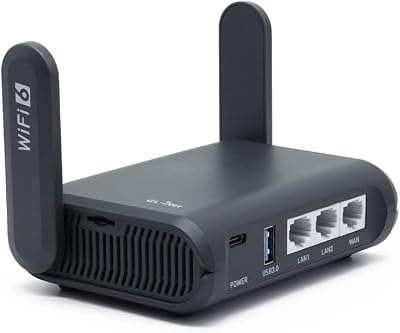
#1. GL.iNet Beryl AX GL-MT3000: the main Wi-Fi 6 branch
GL.iNet Beryl AX GL-MT3000 GL.iNet Beryl AX GL-MT3000
Our verdict:
A balanced travel setup
Best for a permitted hotel connection when a Wi-Fi 6 router and one wired client port meet the job.
View on Amazon - Wi-Fi 6 dual-band router
- 2.5Gbps WAN; 1Gbps LAN
- USB-C power input, 5V/3A
- No built-in cellular modem or battery
Keep in mind: It needs a separate internet source and suitable power; the 2.5Gbps WAN port cannot make a slower hotel link faster.
The Beryl AX specification lists a 2.5Gbps WAN port and a 1Gbps LAN port. WAN is the connection toward the internet source. LAN is for a device on your own side. That makes the distinction useful when you want to wire a laptop rather than use Wi-Fi for every device.
The router also has a USB 3.0 port and uses USB-C power at 5V/3A. Its stated mass is 196g, with dimensions of 120 x 83 x 34mm. Add its power source and any Ethernet cable to the packed kit. The router's number alone is not the complete carry weight.
Choose Beryl AX when its ports cover the actual devices. One LAN port is not enough for several separate wired clients without other equipment. Do not buy the higher WAN number in the hope of fixing a weak upstream signal. The slowest or least reliable part of the connection still matters.
Read the model setup guide before the trip. Confirm that your intended connection mode is available in the installed firmware. Set it up at home with a permitted connection first. That gives time to learn the controls without depending on a hotel desk's help.
#2. GL.iNet Slate AX GL-AXT1800: a second wired client port
- Wi-Fi 6 dual-band router
- One WAN and two LAN Ethernet ports
- USB-C power input, 5V/4A
- No built-in cellular modem or battery
Keep in mind: Its stated 5V/4A power requirement needs close attention; do not assume any phone charger or battery pack is suitable.
The Slate AX maker page lists one WAN and two LAN Gigabit Ethernet ports. Those extra wired-client options can be more useful than a larger wireless headline. For example, a laptop and another permitted device can each use a LAN port without competing for the same physical socket.
The published size is 125 x 82 x 36mm and the mass is 245g. Its USB-C power specification is 5V/4A. Use the supplied or explicitly suitable power equipment. The USB-C connector does not prove a small phone charger can supply the stated input.
Pick this branch when the second LAN port has a real job. If you only need phone and tablet Wi-Fi, another port may add no useful function. Also count the Ethernet cables. A router that looks small by itself can become a much larger travel kit when all the connections are included.
Slate AX has a USB 3.0 port and a microSD slot in its specification. Those are features to inspect if your own setup needs them. Their presence does not prove a particular phone, storage device or cellular modem will work. Read the exact firmware and device instructions before relying on an accessory.
#3. GL.iNet Opal GL-SFT1200: a simpler Wi-Fi 5 route
- Wi-Fi 5 dual-band router
- One WAN and two LAN Gigabit Ethernet ports
- USB-C power input, 5V/3A
- No built-in cellular modem or battery
Keep in mind: It is an older wireless platform with lower published VPN throughput; do not assume it matches the AX models for a demanding job.
The Opal specification lists Wi-Fi 5, one WAN port and two LAN Gigabit Ethernet ports. It also lists USB 2.0, USB-C power at 5V/3A, a mass of 145g and dimensions of 118 x 85 x 30mm. It is the lightest router body in this three-model comparison.
That makes it a route to inspect for a simple permitted connection. It is not a reason to assume the smallest body delivers the same result as the newer wireless models. The local wireless network, internet source and chosen functions each have their own limits.
Check the current firmware for the feature you require. A general statement about GL.iNet software is not proof for every older model. If a specific login system or VPN is essential, establish support with the maker before buying. Check the exact firmware and required login or VPN route before buying.
The USB port is not a SIM slot. A separate compatible modem, where supported, is another purchase with its own data plan and power needs. Do not buy this router expecting it to become a cellular hotspot by inserting a travel eSIM into an app.
Factors to consider when choosing a portable travel router
Decide what the internet source will be
Name the source before choosing a router. It might be an authorized Ethernet outlet, a venue Wi-Fi network or a phone connection. Those are different setup paths. A router can only share a source it can connect to and is permitted to use.
Ask the accommodation what is available if the connection is important for work. An Ethernet socket in a room does not prove it is active or intended for guest use. Likewise, a hotel's public page may describe Wi-Fi without explaining its login or device rules. Keep unconfirmed access listed as unknown.
Compare the router with direct use
If only one laptop needs the hotel connection, using that laptop directly can avoid another device to power. A phone hotspot can also serve a small group of nearby devices, subject to the phone plan's sharing rules. Try the simpler route before adding equipment.
A travel router becomes more useful when it solves a repeatable problem. You may want your devices to connect to your own local network name while the upstream source changes. You may need a wired client port. Those are clearer reasons than a general promise of improved hotel internet.
Keep a router and a cellular hotspot distinct
A cellular hotspot contains a modem that connects to a mobile network. The three routers here do not include that modem. A SIM or eSIM data plan by itself will not provide them with cellular hardware. Check what is inside the exact device, not just the word “portable.”
You can sometimes use a phone or an explicitly compatible external modem as the upstream source. That still requires eligible service. Check the plan's tethering allowance and the router's support for the exact device. The resulting setup can have more cables and more failure points than using the phone hotspot alone.
Understand the three connection paths
With Ethernet, a cable connects the authorized upstream outlet to the router's WAN port. With repeater mode, the router joins an existing Wi-Fi network and shares that connection locally. With supported USB tethering, a phone provides the internet source over a USB connection.
GL.iNet's repeater guide and tethering guide describe separate workflows. Read the one you need. Do not treat a successful Ethernet trial as proof that a particular hotel portal or phone tether will work.
Read port labels before plugging in
WAN and LAN can look alike from the outside. Follow the labels and the selected mode in the manual. Connecting the upstream cable to the wrong port can leave you with a local network but no internet access. A lit indicator alone does not prove the route is correct.
Also check port count. Beryl AX has one wired LAN port; Slate AX and Opal have two. If the plan needs more wired devices, include suitable extra equipment in the design. Do not count the WAN port as a free LAN port unless the exact mode and firmware explicitly support that configuration.
Prepare power as a separate requirement
All three routers need an external source of power. Keep the stated input beside the packing list. Beryl AX and Opal specify 5V/3A. Slate AX specifies 5V/4A. A familiar USB-C socket is not proof that one charger and cable suit all three.
Use the supplied power equipment where practical. If you plan to use a battery, verify the exact output and cable with the router maker. A pack that supplies high power at another voltage is not automatically suitable. Our travel power-bank guide explains why output profiles and shared power matter.
Treat a hotel login page as its own step
A captive portal is the page that asks you to accept terms, sign in or enter a room code before internet access. Being connected to the venue's Wi-Fi is not always enough. Follow the maker's documented approach for the current firmware and the venue's permitted use.
Some portals depend on the guest device or session and can behave differently through a router. Do not promise that a router removes every login step. If you cannot complete the authorized login, ask the venue for a supported connection. Keep a direct phone or laptop route available if the work is time-sensitive.
Respect venue device limits
Read the venue's terms before sharing its connection. A router does not give permission to evade a paid-device limit or a ban on extra networking equipment. Ask when the policy is unclear. Buying a router for a specific venue is a poor choice while permission remains unknown.
The same applies on a ship, at an event or in managed accommodation. A permitted home setup does not establish permission elsewhere. Check the route and the rules separately. If the venue does not allow your planned use, choose a permitted service or work directly through the allowed device.
Do not confuse Wi-Fi link rates with internet speed
The wireless numbers on a product page describe advertised local link capability under stated conditions. They are not the speed you will receive from a hotel. Walls, interference and the upstream service can all affect the result.
A faster WAN port is similarly limited by the source and the client path. A low-capacity hotel connection will not become a multi-gigabit service because one socket supports a higher rate. Choose ports for an actual requirement, then measure the real connection after you are allowed to use it.
Decide whether wired clients solve a real need
Ethernet can provide a direct local connection for a device with a suitable port or adapter. It also adds cable bulk. Check that the laptop or other client accepts the adapter you plan to take. A socket on the router does not establish the rest of the connection.
If two wired clients are essential, Slate AX or Opal deserves a look before adding a separate network switch to Beryl AX. If none is essential, keep that feature in proportion. An unused second LAN port does not make a router a better match for a phone-only trip.
Use USB tethering only where supported
Read the router's tethering guide for the exact phone system and firmware. Follow the phone's prompts deliberately. The phone may need a data-capable USB cable and a setting that enables tethering. A charge-only connection is not proof of an internet path.
Your mobile plan also controls what can be shared. A travel eSIM advertised for phone data may impose separate tethering terms. Read those before choosing a router around the phone. If the plan does not permit the required sharing, the router cannot make that allowance appear.
Check a VPN as a separate connection
These routers document VPN features, but a feature name is not a configured tunnel. You need an appropriate endpoint and valid settings. Follow the maker's current client instructions and any rules set by your employer or network owner. No paid VPN purchase is required by this article.
A VPN can change which path traffic takes and can reduce available throughput. It does not make an unsafe download safe or guarantee that a website cannot identify you. Establish the base internet connection first so you can tell a tunnel problem from an upstream problem.
When a portal will not open
Check the allowed upstream network name and confirm the venue supplied the correct login details. Disconnect the extra test clients while working through the basic route. Read the relevant firmware guide. If you are changing DNS or VPN settings, record the original state before following any documented step.
Do not invent settings or disable protections in response to a vague online tip. If the maker's documented route still fails, use a permitted direct connection and ask the venue or maker for help. A router is an optional tool; it should not become the only way to read an urgent booking or work message.
When a wired connection has no internet
Confirm that the outlet is an authorized guest connection. Check the correct WAN socket and a suitable working Ethernet cable. Read the mode and status shown by the router. If possible, establish whether the same upstream service works directly with an allowed client.
The venue may require another login step or may have disabled the port. Those are facts to resolve with the venue. They are not proof the router is faulty. Resetting repeatedly can erase a good configuration while leaving the upstream issue unchanged. Use the status information to narrow the problem first.
When a phone tether connects only to charge
Check that the cable can carry data and that the phone's documented tethering setting is active. Read any permission prompt on the phone. Then check the router's supported-device guidance. Do not assume every USB port has the same role simply because the phone battery indicator appears.
Also check the plan. A service can permit on-phone data while limiting sharing. If the exact phone or plan is unsupported, use another documented connection route. No adapter or router feature should be described as a way to bypass a service restriction. Change the plan or use a permitted alternative instead.
Check what a reset would erase
A restart and a factory reset are different steps. Read the model's guide before pressing a reset control. A factory reset can remove the setup you have saved. Do not use it as the first answer to a failed hotel connection. The fault may be outside your own router.
If you do need a reset, first make sure you can set the device up again. Keep the manual and the required connection details available. Store any private credentials in a safe place. A screen grab that shows a password should not go into a shared travel message or a public help post.
After following the maker's reset process, treat the unit as a fresh setup. Set its admin and Wi-Fi passwords as instructed. Recheck the intended mode with one client. Then add the rest of your devices. This gives you a clear starting state instead of repeating changes you cannot trace.
Keep a fallback for a work-critical day
Save the meeting address, booking details and essential contact route offline where possible. Decide in advance what you will do if the hotel source fails. That may be a permitted phone hotspot or a different approved connection. Verify its data allowance rather than assuming it is unlimited.
Do not spread out to several locations while relying on one router left in a room. The local network reaches only its actual location and coverage. Travelers who separate may each need a connection. A shared setup is a choice about where the people and devices will stay, not just a box's port count.
Pack and close down deliberately
Make a short kit list: router, suitable power source and the cables required by your chosen mode. Keep the model's manual accessible offline. Check that a needed adapter is in the bag before departure. Extra pieces should have a stated job rather than accumulate as untested spares.
At the end of a stay, disconnect the venue connection and inspect saved network details using the maker's instructions. Remove access you no longer want retained. Store the router and leads so connectors are not under strain. Avoid keeping room-login details in places where another traveler can read them.
How we picked
Compare the permitted internet source first, then the wired-client count, power input and packed size. Those specifications explain the shortlist; local Wi-Fi link rates cannot predict hotel internet speed. Phone hotspot may already meet the need when your data plan permits sharing.